
Apple Pay
Convenient and secure payments via iPhone, iPad, Apple Watch and Mac

Quick and convenient payments 24/7 around the world
With Apple Pay, you pay in stores and online even more securely than by standard payment card. The merchant will never see your card number, a unique code will be generated for each payment. Moreover, contactless payment and adding a card to your digital wallet are totally free of charge.
Payment has never been simpler
- Add your card to the Apple digital wallet via the George app.
- Hold your device up to a payment terminal.
- And that's it, you have just made a contactless payment. 🎉
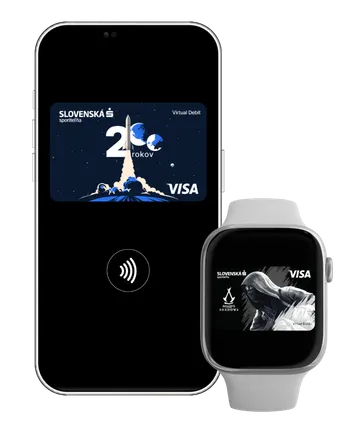

Why make contactless payments?
You decide how to pay
You can leave your card at home. All you need is a mobile phone or watch.- Make lightning-fast payments
Your purchase is made in just seconds.
- Quick, simple, hassle-free
Hold your device to the terminal (tap), and you’re done.😊
What else could you find useful
Wherever you find these symbols:
You can register all Visa debit cards on Apple Pay.
Apple Wallet is installed in all iPhones (with iOS 8.1 and later) and it is already installed in Apple Watches (with watchOS 2.0). It cannot be installed on older operating system versions.
Procedure for iPhone:
The fastest way to add a card to the mobile phone is via the George app. If you have just created your account, you don’t have to wait for delivery of the physical card itself – you can add it immediately. Click on the card icon in the upper menu of the main screen Overview, select the card you want to add, then Functions – Add to wallet and proceed according to the instructions.
If you add the card directly via the digital wallet, you need to have the data from the actual card itself. Open the app Apple Wallet, click on +, scan the card or enter it manually and proceed according to the instructions. The bank may also request a one-time verification (via SMS, e-mail, bank app).
Procedure for other devices:
- Open the Apple Watch application in your paired iPhone.
- Select Wallet & Apple Pay.
- Select the option Add card or Verify.
- Enter the one-time verification code if required.
- Open Settings.
- Select Wallet & Apple Pay.
- Select the payment card.
- Enter the one-time verification code if required.
- Open System preferences.
- Select Wallet & Apple Pay.
- Select the payment card.
- Enter the one-time verification code if required.
Contactless payments in stores are really simple:
Procedure for iPhone:
- Press the side button twice to open the Apple Wallet application.
- Authorise via Touch ID, Face ID or PIN.
- Hold the back of the mobile phone to the contactless payment terminal.
Procedure for Apple Watch:
- Press the side button twice to open the Apple Wallet application.
- Enter the security code.
- Hold the watch up to the contactless payment terminal.
You can also make contactless payment by iPhone in e-shops and applications:
- If the e-shop/application enables payment via Apple Pay, click on the Apple Pay payment button.
- Before confirming the purchase order, a prompt may be displayed to select the payment method and add a delivery address.
Yes, in fact contactless payments are even more secure than regular card payments, because the merchant sees no information from your card. Data is not stored directly on the mobile phone/watch – unique card numbers are used – so-called tokens, which protect your data.
Payments are moreover protected by biometric verification (Face ID, fingerprint) or by PIN code.
No, you only need to be connected to the Internet during card registration. From time to time however, it is necessary to connect to the Internet so data can be updated.
No, use of the service is free of charge.
Yes, you can add up to 8 different cards in Apple Pay.
Yes, you can register a card on up to 10 devices.
You can withdraw cash via Apple Pay if the ATM supports contactless withdrawals. When doing so, you must enter the PIN assigned to your physical card.